Visualization
Cropbox provides one main visualization family and an optional interactive wrapper. The same calls work with existing data or with a model that still needs to be simulated.
| Function | Start with | What it does |
|---|---|---|
visualize, visualize! | vectors, a DataFrame, a system, or data plus a system | draw existing data or run any needed simulations and draw the result |
manipulate | a callback or visualize arguments | add parameter widgets in a supported notebook |
Cropbox.reset_manipulate | no arguments | reset widget connections after a failed notebook refresh |
For a saved analysis, it is usually clearest to call simulate, keep its DataFrame, and plot that table. Direct system visualization is convenient for quick response curves, comparisons, and checks while developing a model.
The public call families are:
| Call shape | Result |
|---|---|
visualize(X, Y) or visualize(df, x, y) | visualize existing arrays or table columns |
visualize(System, x, y) | simulate one system and plot its trajectory or response |
visualize([System1, System2], x, y) | compare compatible systems |
visualize(df, System, x, y) | overlay observations and a simulated trajectory |
visualize(obs, System, y; index) | observation-versus-estimate plot |
visualize(System, x, y, z) | two-factor heatmap or contour plot |
visualize! | append to an existing Plot and return the same wrapper |
Every form returns Cropbox's Plot wrapper and accepts the same labels, units, limits, kinds, and backend selection.
Common plotting forms
The examples below use one small trajectory model and one static response model.
using Cropbox
using DataFrames

@system VisualTrajectory(Controller) begin
    rate          => 1.0           ~ preserve(parameter, u"g/hr")
    mass(rate)                     ~ accumulate(u"g")
    reached(mass) => mass >= 3u"g" ~ flag
end

@system VisualResponse(Controller) begin
    input                  => 0.0           ~ preserve(parameter)
    slope                  => 1.0           ~ preserve(parameter)
    response(input, slope) => slope * input ~ track(min = 0)
end

series = DataFrame(
    hour = (0:4)u"hr",
    observed = [0.1, 1.2, 1.9, 3.2, 3.8]u"g",
    smooth = [0, 1, 2, 3, 4]u"g",
    reached = [false, false, false, true, true],
)

nothing
Vectors and DataFrames
visualize(X::Vector, Y::Vector; options...)
visualize(X::Vector, [Y1, Y2]; options...)
visualize(df, x, y; options...)
visualize(df, x, [y1, y2]; options...)
For a DataFrame, x and y may be column names as symbols or strings. They may also be an expression evaluated column by column, such as :(SWC / depth). The result is useful for a derived quantity that does not need to become a model variable. Functions used inside the expression must be visible in the calling Julia session; for a saved analysis, a named derived column is easier to test and reuse.
Array-based calls currently dispatch on concrete Vector values. Use collect(range) before passing a range directly.
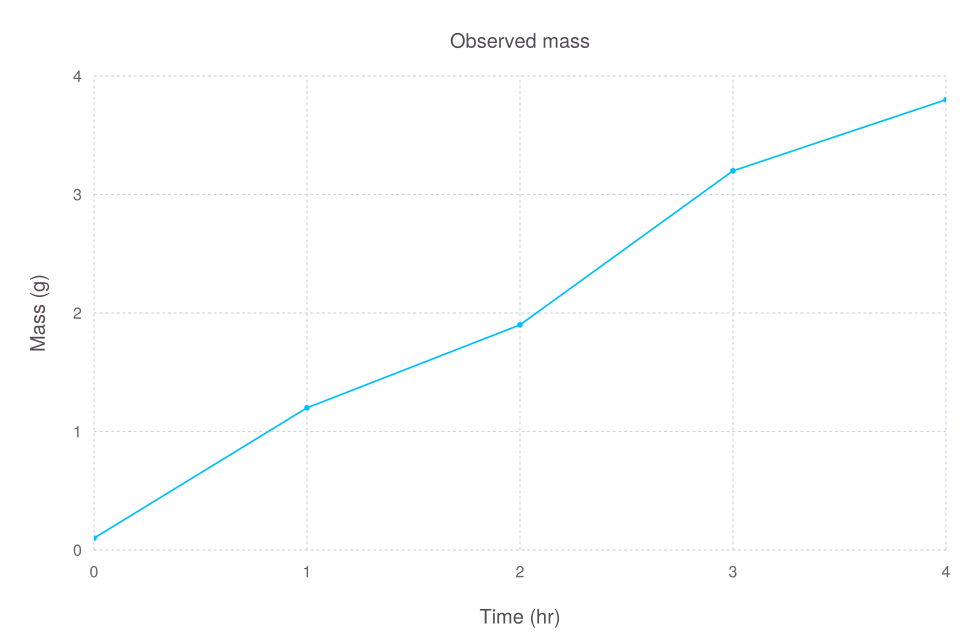
visualize(series, :hour, :observed;
    kind = :scatterline,
    title = "Observed mass",
    xlab = "Time",
    ylab = "Mass",
    legend = false,
)
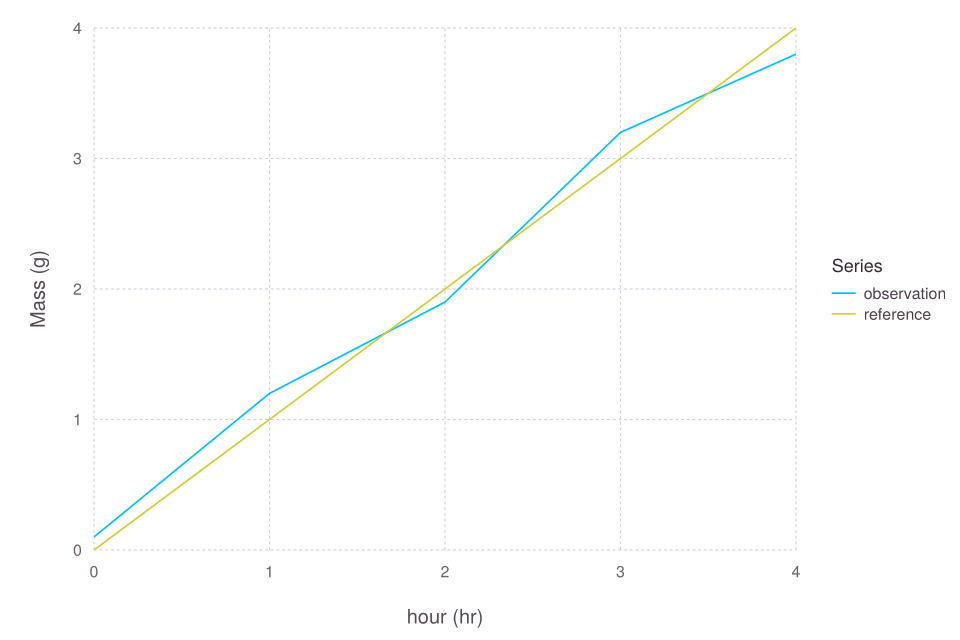
Passing several y columns draws several series. names controls their legend labels; legend is the legend title, not a Boolean switch for individual series.
visualize(series, :hour, [:observed, :smooth];
    kind = :line,
    names = ["observation", "reference"],
    legend = "Series",
    ylab = "Mass",
)
Plot kinds
Two-dimensional plots support these kind values:
kind | Use |
|---|---|
:scatter | separate observations; the default |
:line | a continuous ordered trajectory |
:scatterline | points and a connecting line |
:step | stages, counts, or Boolean state changes |
:hline | one or more horizontal reference lines |
:vline | one or more vertical reference lines |
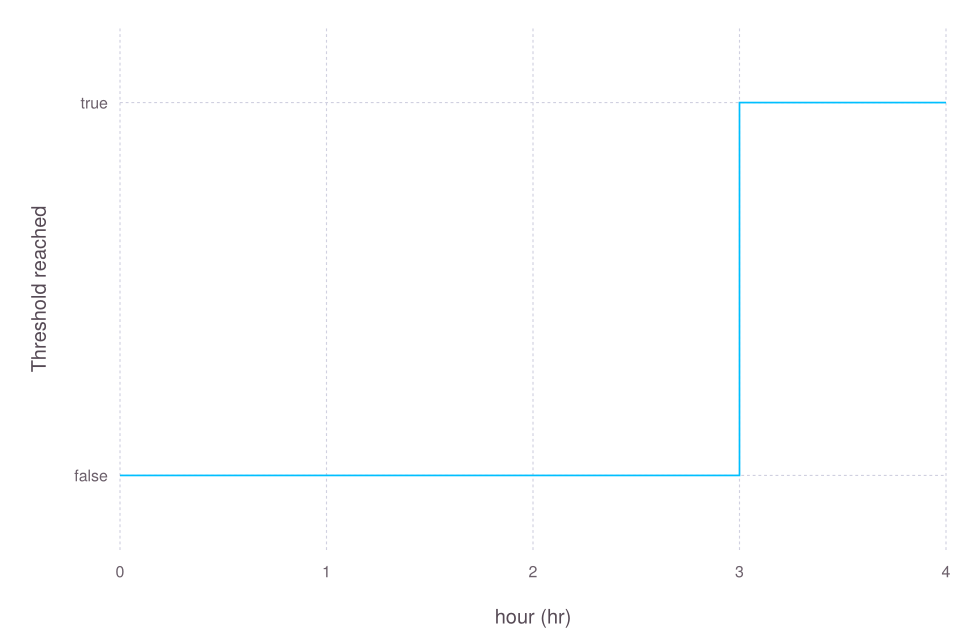
step automatically treats Boolean values and other repeated categories as ordered levels. Supply ycat when their display order must be explicit.
visualize(series, :hour, :reached;
    kind = :step,
    ylab = "Threshold reached",
    legend = false,
)
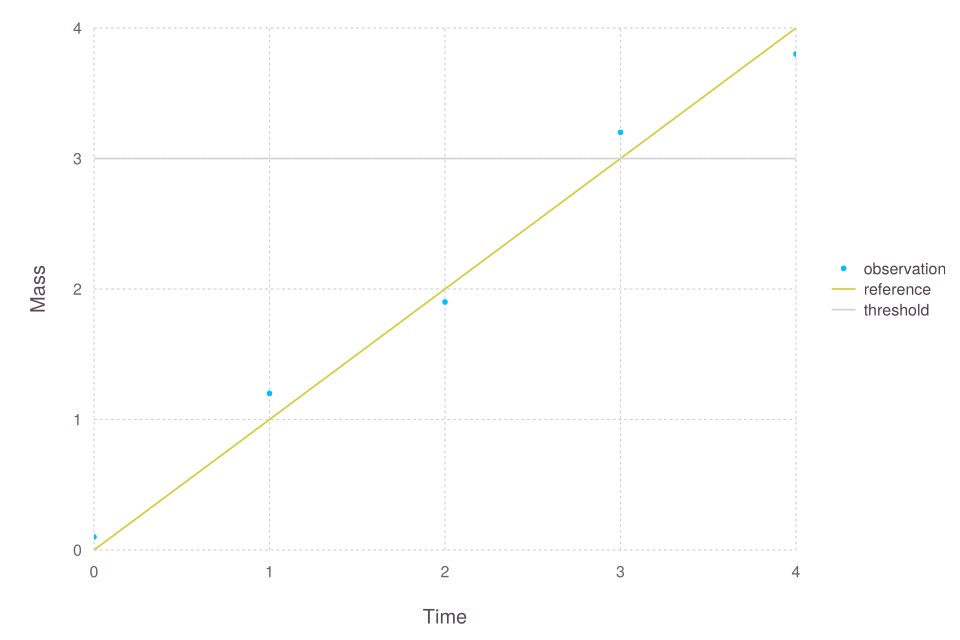
An initial horizontal line needs xlim; an initial vertical line needs ylim. When the line is appended to a plot, Cropbox reuses that plot's limits.
plain_series = DataFrame(
    x = 0:4,
    observed = [0.1, 1.2, 1.9, 3.2, 3.8],
    smooth = 0:4,
)

p = visualize(plain_series, :x, :observed;
    kind = :scatter,
    name = "observation",
    xlab = "Time",
    ylab = "Mass",
)
visualize!(p, plain_series, :x, :smooth;
    kind = :line,
    name = "reference",
)
visualize!(p, 3;
    kind = :hline,
    name = "threshold",
    color = :lightgray,
)
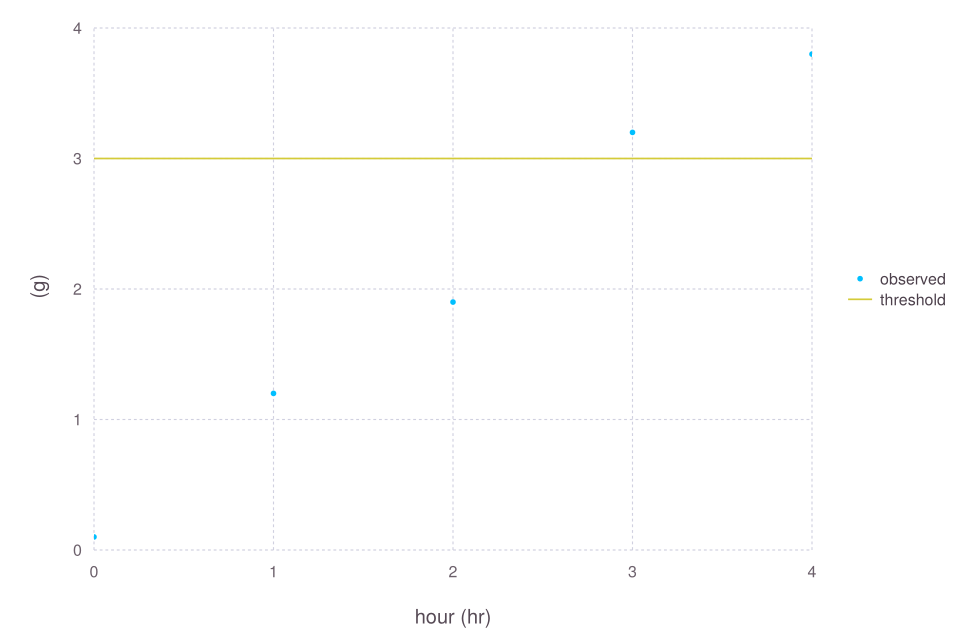
The one-value :hline and :vline helpers currently work most reliably when both axes are unitless or use compatible dimensions. For a plot with time on x and mass on y, draw a two-point unit-aware line instead:
p_units = visualize(series, :hour, :observed; kind = :scatter)
visualize!(p_units, [0, 4]u"hr", [3, 3]u"g";
    kind = :line,
    name = "threshold",
)
visualize! changes and returns the same Cropbox Plot. Reference lines and text annotations can be added through this API without modifying the backend object:
visualize!(p, [1, 3], [4, 2]; kind=:line, color=:gray, linestyle=:dot, name="")
visualize!(p, 2, 4, "Reference\nline"; align=:center)
linestyle accepts :solid (the default), :dash, :dot, :dashdot, and :dashdotdot. UnicodePlots draws solid lines and warns when another style is requested. Text uses data coordinates and the existing axis units, converting compatible unitful values. It does not change the axis limits or add a legend entry. align accepts :left (the default), :center, and :right.
To save a graphical result, use the included CairoMakie renderer:
p = visualize(series, :hour, :observed;
    kind = :line, backend = :Makie,
)

Cropbox.CairoMakie.save("observed.svg", p[])
Cropbox.CairoMakie.save("observed.pdf", p[])
Cropbox.CairoMakie.save("observed.png", p[])
No additional package installation or import is needed for these formats. The returned wrapper remains the portable part of the API; p[] now contains a Makie Figure for graphical output.
Visualize a simulation
visualize(SystemType, x, y;
    config = (), group = (), xstep = (),
    base = nothing, stop = nothing, snap = nothing,
    options...)
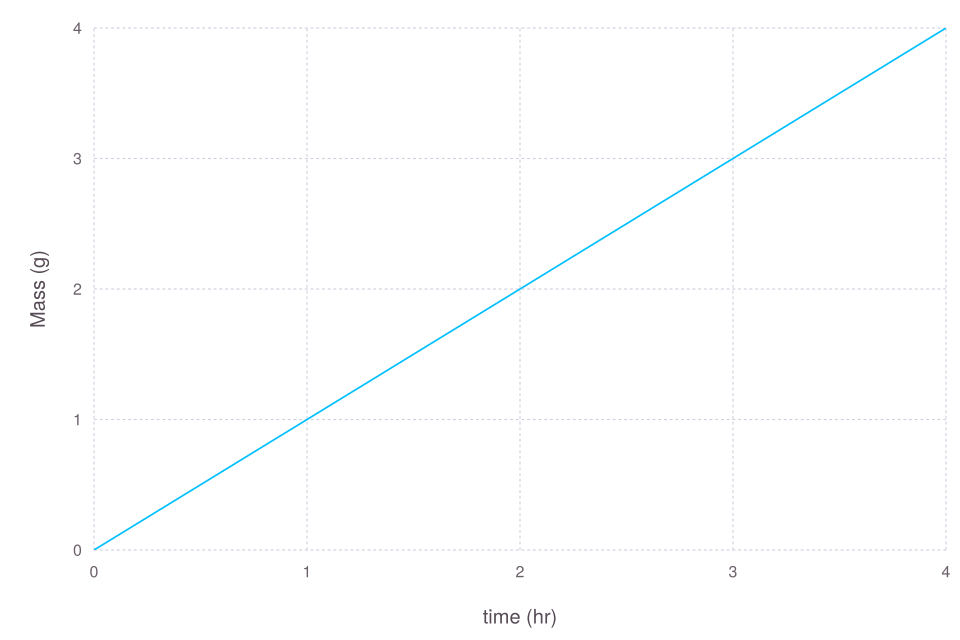
This form calls simulate with x and y as output variables, then renders the result. The usual simulation meanings of base, stop, and snap apply.
visualize(VisualTrajectory, :time, :mass;
    config = VisualTrajectory => :rate => 1,
    stop = 4u"hr",
    kind = :line,
    ylab = "Mass",
    legend = false,
)
When y is a vector, all targets are drawn from the same simulation output. This is the form used for leaf gas-exchange limitation rates, garlic organ mass, and soil-water components in the tutorials.
visualize(Model, :time, [:leaf_mass, :bulb_mass, :total_mass];
    config,
    stop = :finished,
    kind = :line,
    names = ["leaf", "bulb", "total"],
)
Parameter response curves
xstep varies the variable used on the x-axis. group makes one series for each value of another parameter. Both accept the same system-to-parameter pair shape used by @config.
visualize(VisualResponse, :input, :response;
    xstep = VisualResponse => :input => 0:0.25:4,
    group = VisualResponse => :slope => [0.5, 1.0, 1.5],
    kind = :line,
    ylab = "Response",
)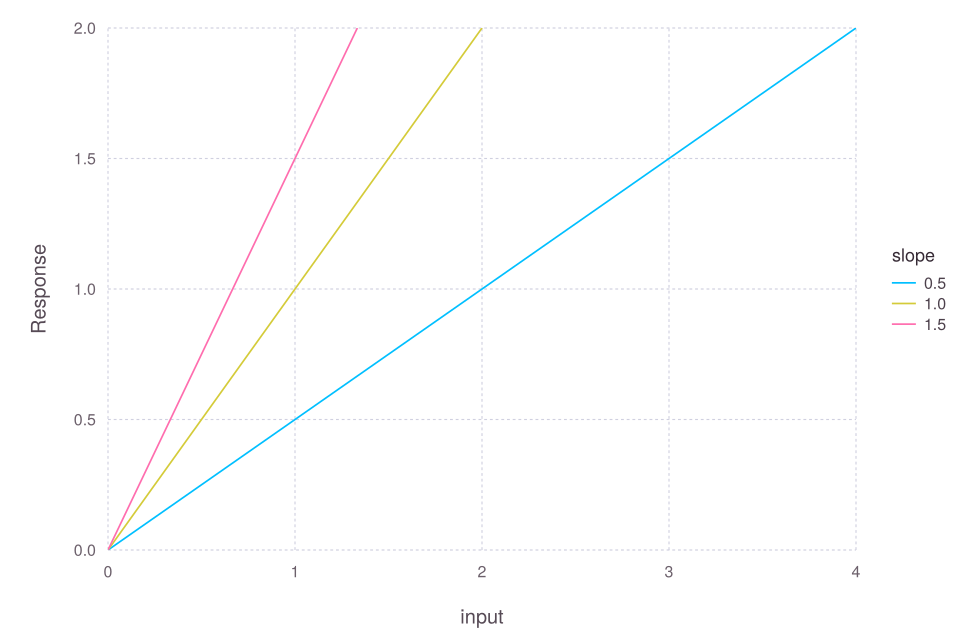
For a grouped curve, the group parameter becomes the default legend title and its values become the series labels. Pass names and legend to replace them. If names is a symbol, Cropbox reads the unique value of that output column and uses it as each label. The latter is useful when a label is determined indirectly by configuration.
Use xstep with a static or snapshot-like response. If the system advances for many steps, every snapshot from every configuration is placed in the same curve; in that case it is usually clearer to call simulate, select the desired time rows, and plot the resulting table.
Compare systems
Pass a vector of system types to compare compatible outputs. configs, names, and colors are parallel vectors and must match the systems in order.
@system FastVisualTrajectory(VisualTrajectory) begin
    rate => 1.5 ~ preserve(parameter, u"g/hr")
end

visualize([VisualTrajectory, FastVisualTrajectory], :time, :mass;
    configs = [(), ()],
    names = ["baseline", "fast"],
    colors = [:steelblue, :darkorange],
    stop = 4u"hr",
    kind = :line,
)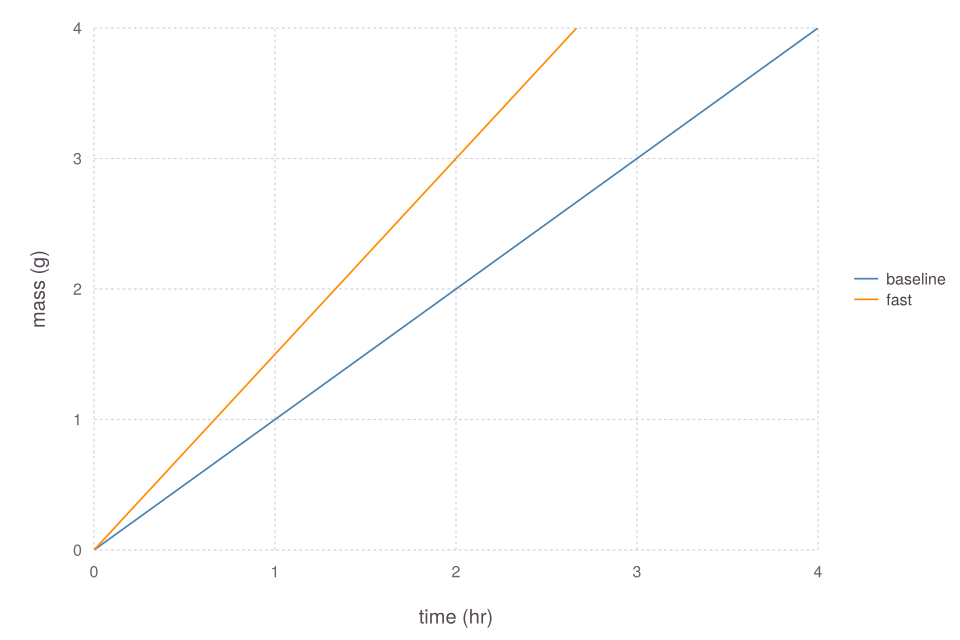
The systems do not need to share an implementation, but each must expose the requested x and y paths. Omit configs, or leave it empty, to use an empty configuration for every system. Supply a parallel vector explicitly when the positional pairing should be especially clear in teaching or analysis code.
Append simulations with visualize!
Use the mutating form when the layers are assembled conditionally or at different points in an analysis. nothing is accepted as the initial plot, but starting with visualize is usually easier to read.
p = visualize(VisualTrajectory, :time, :mass;
    config = VisualTrajectory => :rate => 1,
    stop = 4u"hr",
    kind = :line,
    names = ["baseline"],
    legend = "Model",
    colors = [:steelblue],
)

visualize!(p, FastVisualTrajectory, :time, :mass;
    stop = 4u"hr",
    kind = :line,
    names = ["fast"],
    colors = [:darkorange],
)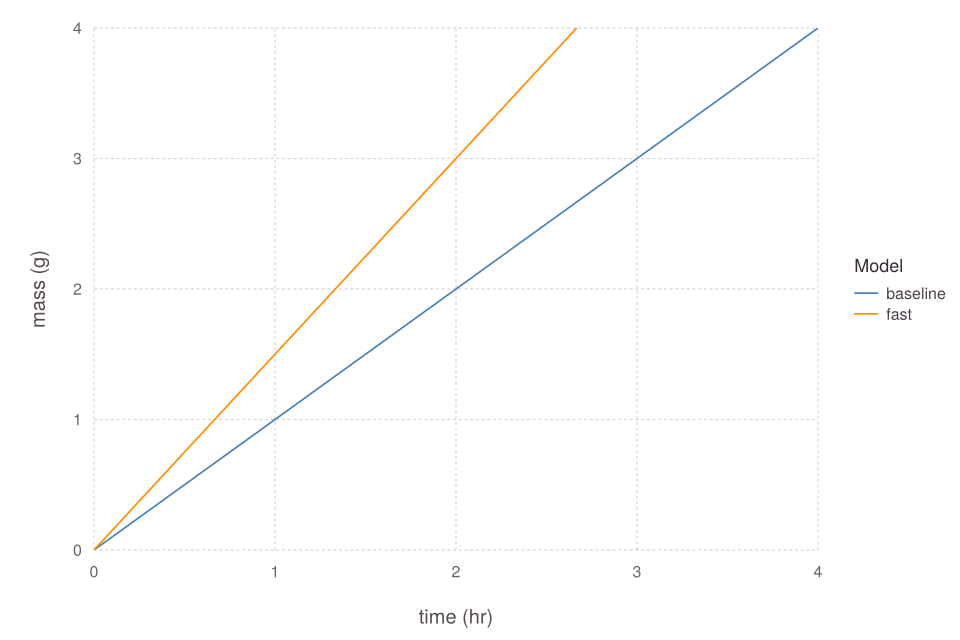
All appended layers must use compatible axis units. visualize! does not retain a simulation table, so call simulate explicitly when those values are needed for later statistics or export.
Appended calls inherit the existing backend and legend position. There is no need to repeat backend; explicitly selecting a different backend for an existing visualization is an error.
Observations and model estimates
There are two distinct comparison plots.
Overlay trajectories
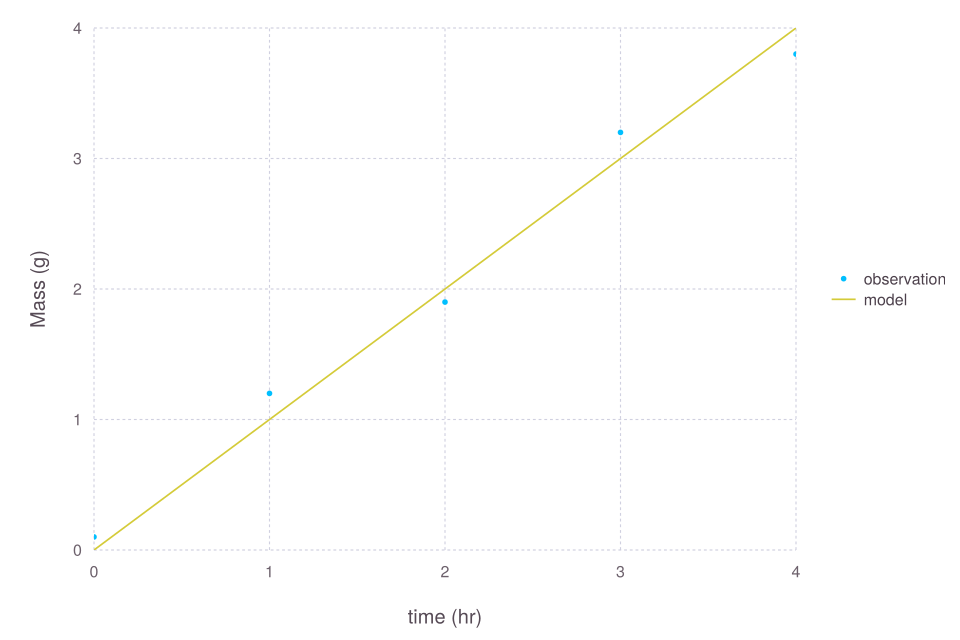
visualize(observations, SystemType, obs_x => model_x, obs_y => model_y;
    config, stop, options...)
Cropbox draws observations as points and model output as a line. Pairs map differently named columns; omit the pairs when both names already match.
observations = DataFrame(
    hour = (0:4)u"hr",
    measured = [0.1, 1.2, 1.9, 3.2, 3.8]u"g",
)

visualize(observations,
    VisualTrajectory,
    :hour => :time,
    :measured => :mass;
    config = VisualTrajectory => :rate => 1,
    stop = 4u"hr",
    name = "observation",
    names = ["model"],
    ylab = "Mass",
)
Pass a vector of systems and a parallel configs vector to overlay several models on the same observations.
Observation versus estimate
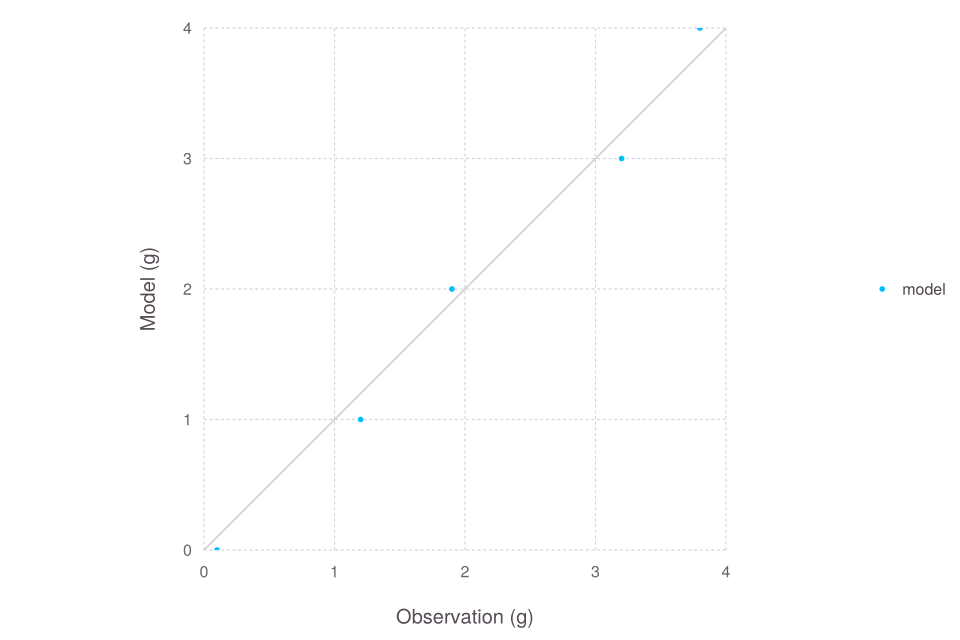
Omit the x argument and supply index. Cropbox simulates only at matching indices, joins observations and estimates, draws points, and adds the 1:1 line.
visualize(observations,
    VisualTrajectory,
    :measured => :mass;
    index = :hour => "context.clock.time",
    config = VisualTrajectory => :rate => 1,
    stop = 4u"hr",
    name = "model",
)
A vector target draws one observation-versus-estimate series for each target. For several model specifications of one target, pass named tuples with system, config, or configs fields:
models = [
    (; system = VisualTrajectory,
       config = VisualTrajectory => :rate => 0.9),
    (; system = VisualTrajectory,
       config = VisualTrajectory => :rate => 1.1),
]

visualize(observations, models, :measured => :mass;
    index = :hour => "context.clock.time",
    names = ["slow", "fast"],
    stop = 4u"hr",
)
These plots join on the index, so missing points, incompatible units, time-zone differences, or duplicate indices can change which rows appear. Check the joined data with evaluate or an explicit DataFrames join when a point is unexpectedly absent.
Heatmaps and contours
visualize(SystemType, x, y, z;
    config = (), xstep = (), ystep = (),
    base = nothing, stop = nothing, snap = nothing,
    options...)
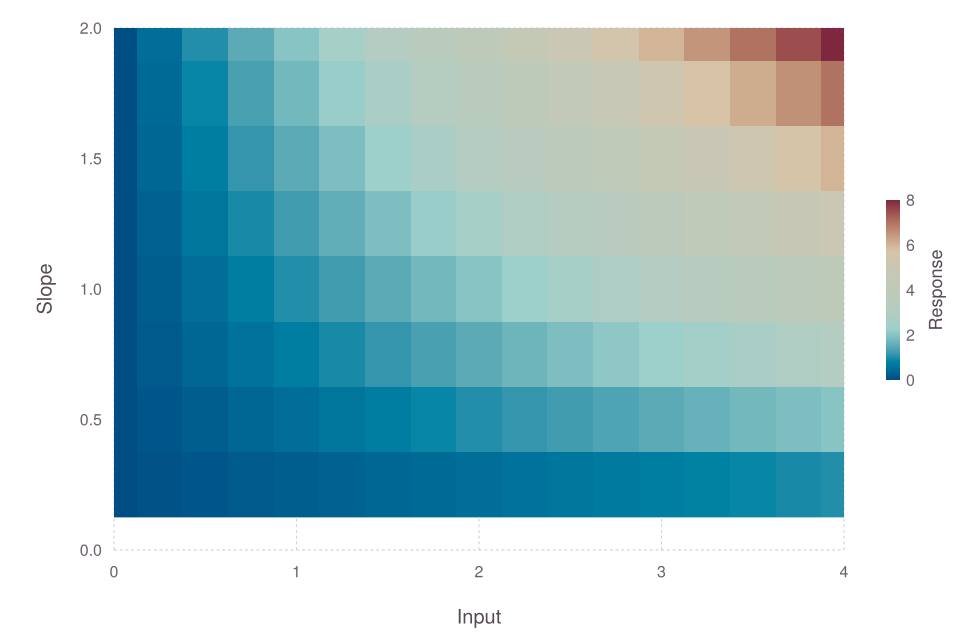
xstep and ystep form a factorial grid. The result is plotted as a heatmap by default. This is the pattern used for the nitrogen-by-water-potential response in the Leaf Gas Exchange tutorial.
visualize(VisualResponse, :input, :slope, :response;
    xstep = VisualResponse => :input => 0:0.25:4,
    ystep = VisualResponse => :slope => 0.25:0.25:2,
    kind = :heatmap,
    xlab = "Input",
    ylab = "Slope",
    zlab = "Response",
    aspect = 1.4,
)
The same factorial result can be rendered as contours:
visualize(VisualResponse, :input, :slope, :response;
    xstep = VisualResponse => :input => 0:0.25:4,
    ystep = VisualResponse => :slope => 0.25:0.25:2,
    kind = :contour,
    zgap = 0.5,
    zlabgap = 1,
    xlab = "Input",
    ylab = "Slope",
    zlab = "Response",
    aspect = 1.4,
    backend = :Makie,
)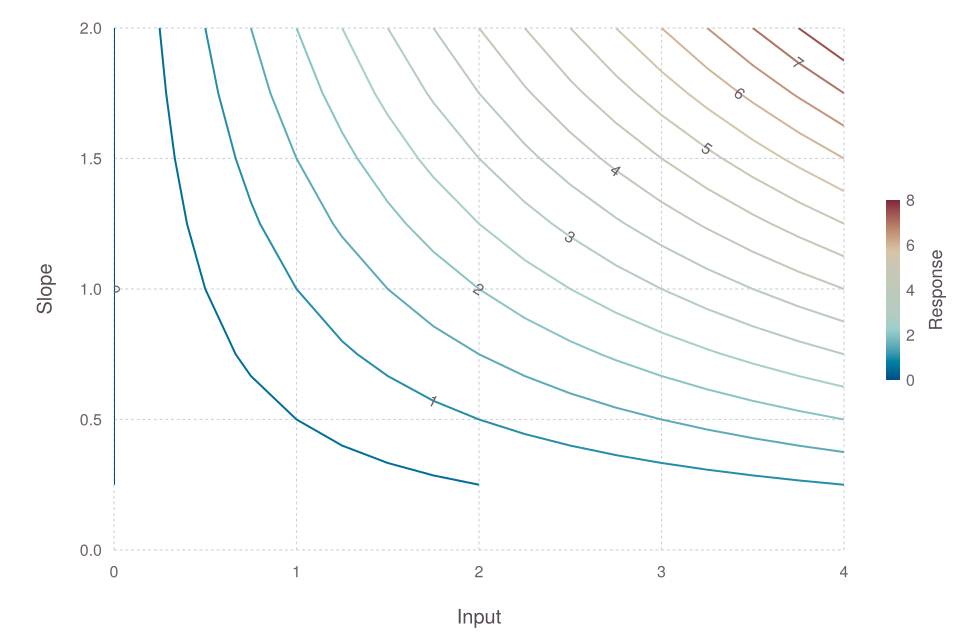
Three-column visualize(df, x, y, z) uses the same renderer. Set kind=:contour for contour lines. zlim fixes the color or contour range, zgap controls contour spacing, and zlabgap requests labels at a chosen interval. Contour rendering and the gap options are currently more complete in the Makie backend than in the terminal backend. Supply a complete, regularly ordered x-by-y grid for portable heatmap output; visualize creates that grid from its two factors.
Labels, units, limits, and backends
The main two-dimensional options are:
| Option | Meaning |
|---|---|
kind | :scatter, :line, :scatterline, or :step |
title, xlab, ylab | plot and axis labels |
name, names | one series label or several series labels |
legend, legendpos | legend title/visibility and inside position |
color, colors | one color or parallel series colors |
linestyle | line pattern, defaulting to :solid |
xlim, ylim | displayed data limits |
xunit, yunit | units used for conversion and axis labels |
ycat | explicit category order for a step plot |
aspect | requested width-to-height relation |
backend | :Makie or :UnicodePlots |
For three-column plots, zlab, zlim, zgap, and zlabgap control the color or contour dimension. legendpos = (x, y) places a Makie legend at relative coordinates: x locates its left edge from the panel's left edge, and y offsets its centre downward from the panel's centre. For example, (0.1, -0.3) places it near the upper left. The terminal backend warns and ignores that option. Makie also accepts named positions such as :lt and :rb for a series legend.
Set legend=false to hide the legend. Units are inferred from arrays or DataFrame columns. An explicit xunit or yunit converts compatible values before plotting; it does not reinterpret an incompatible number. ZonedDateTime columns are converted to DateTime because the graphical backend does not accept zoned values directly.
Cropbox chooses Makie in Jupyter, Pluto, VS Code, and Documenter, and UnicodePlots in a plain terminal. Set backend when output must be identical across environments. Use visualize and visualize! for drawing and annotations so that notebook code does not depend on a backend's internal plot structure.
Backend behavior is not completely identical:
| Feature | Makie | UnicodePlots |
|---|---|---|
| line, scatter, and step | supported | supported |
:scatterline | points plus line | line rendering |
| text annotations | supported | supported within terminal resolution |
non-solid linestyle | supported | solid lines with a warning |
| heatmap | supported | supported on a regular grid |
| contour | supported | warns and falls back to a heatmap |
inside legendpos | supported | ignored with a warning |
zgap, zlabgap | supported for contours | ignored with a warning |
Use backend = :Makie for graphical output, contour labels, and inside legends. Use :UnicodePlots for fast terminal diagnostics.
Makie backend
Cropbox installs and loads Makie and its CairoMakie renderer as regular dependencies. No separate installation or using CairoMakie is needed to display a Makie plot in a notebook. Makie is the default in graphical environments; select backend = :Makie explicitly when running in a terminal.
using Cropbox

p = visualize([0, 1, 2], [0, 1, 4]; backend = :Makie, kind = :line, name = "Model", legendpos = (0.1, -0.3))
visualize!(p, [0, 1, 2], [0, 1.1, 3.8]; name = "Observed")
visualize!(p, 1, 3, "Example")
Cropbox.CairoMakie.save("figure.pdf", p[])
The built-in Classic style follows Cropbox's Gadfly colors, lighter text, compact legends, and calendar labels. It requests Verdana; Makie falls back to its bundled font when Verdana is unavailable. It does not bundle fonts. The style is scoped to the figure and does not change the global Makie theme. Cropbox does not expose theme selection; use Makie directly for custom styling.
This adapter supports lines, scatter, scatterlines, categorical steps, horizontal/vertical lines, heatmaps, contours (including labels), and text. It retains units and explicit limits; in particular zlim is the exact color range, not Gadfly's sometimes expanded tick range. Grid rows may be unordered; missing grid cells remain blank. Dates use Makie's native calendar conversion.
Migrating from Gadfly
Normal visualize and visualize! calls keep their signatures and options, but the output is not pixel-identical. Font fallback, tick labels, legend layout, and heatmap color ranges may differ.
Cropbox no longer installs Gadfly or supports it as a backend. Replace explicit backend = :Gadfly with backend = :Makie. Code that accesses Gadfly.Plot fields or uses Cropbox.Gadfly.SVG or PDF must also change: use public visualize! calls for annotations and layers, and the export examples above for saving figures.
Archived workshop and course notebooks may continue to use their original versioned environments or Docker image digests. Updating those materials is separate from this package migration. manipulate now uses Bonito instead of Interact/WebIO; its return value is a Bonito App, not an Interact widget.
Common failures
- A vector of systems requires parallel
configs,names, andcolorsin the same order. In particular,configsmust have the same length as the system vector. - A heatmap requires a complete, regularly ordered factorial grid. Missing combinations are better handled by constructing and checking a
DataFramebefore plotting. - Appended layers must have compatible units.
xunitandyunitconvert compatible quantities; they do not assign dimensions to unrelated values. - Appended calls inherit the existing backend; do not select a different one.
- A grouped response curve may contain every snapshot from every configuration. Select one time point explicitly when a dynamic run would otherwise join unrelated trajectories.
- Observation-versus-estimate plots use an inner join. Missing, duplicated, or differently zoned index values can silently reduce or multiply the points; inspect the joined table when the count is unexpected.
- Backend warnings usually indicate a presentation limitation, not a failed simulation. Re-run with
backend = :Makiebefore changing model equations.
Interactive parameter controls
The callback form receives a configuration made from the current widget values:
manipulate(c -> visualize(VisualTrajectory, :time, :mass;
        config = c,
        stop = 4u"hr",
        kind = :line,
    );
    parameters = VisualTrajectory => :rate => 0:0.25:2,
    config = VisualTrajectory => :rate => 1,
)
The convenience form sends its positional and remaining keyword arguments to visualize:
manipulate(VisualTrajectory, :time, :mass;
    parameters = VisualTrajectory => :rate => 0:0.25:2,
    config = VisualTrajectory => :rate => 1,
    stop = 4u"hr",
    kind = :line,
)
Numeric ranges and arrays make sliders; arrays of symbols or enum values and dictionaries make drop-down controls; Booleans make check boxes. Dictionary keys are the displayed labels and their values are passed to the callback. An explicit config sets the initial selection; otherwise sliders start at the middle element and drop-down controls start at the first option.
Slider readouts update while dragging, but the model is recalculated only when the change is committed, such as when the mouse button is released. The callback receives the selected values with their model units restored, merged with the baseline configuration.
Callbacks can also return numbers, strings, tables, or other displayable values:
manipulate(c -> c[:VisualTrajectory][:rate];
    parameters = VisualTrajectory => :rate => 0:0.25:2,
    config = VisualTrajectory => :rate => 1,
)
JupyterLab 4 and Notebook 7 need jupyter-server-proxy installed in the Python environment that runs Jupyter:
python -m pip install jupyter-server-proxyRestart the Jupyter server after installation. Cropbox's Docker image includes this dependency. No WebIO extension, separate Bonito import, or widget macro is needed: execute the manipulate(...) cell to display the controls and plot. A live Julia kernel is required for recalculation; saved notebook or HTML output does not run the model on its own.
The Docker image uses notebook-relative proxy URLs, so forwarding Jupyter to a different host port does not require a widget setup cell.
With the default Bonito configuration, Cropbox requests an automatically assigned port before displaying the first widget. Separate notebook kernels can therefore run widgets at the same time without selecting ports manually. An existing Bonito server, a nondefault port, or an explicit proxy is left unchanged.
When updating older workshop or course notebooks, remove this WebIO initialization cell:
Cropbox.Interact.WebIO.setup(:ijulia)It initialized WebIO in the older notebook/sysimage environment. Interact is no longer a Cropbox dependency, so that line now errors. It does not need a replacement for an ordinary first run. Archived notebooks using their original Cropbox environment should keep their original setup.
A normal browser refresh can reconnect, but replacing the first interactive output and then refreshing can leave controls disconnected (Bonito is not defined in the browser console). A disconnected session can also expire after about 30 seconds, leaving saved controls unresponsive. To recover without restarting Julia, run:
Cropbox.reset_manipulate()Then re-run the interactive output cells. This resets all Bonito widget sessions in the current Julia kernel, not the model definitions or other Julia variables. Existing calibration results remain available; there is no need to restart the kernel or run every cell again. Widget selections return to each call's initial configuration. Existing port and proxy settings are preserved. Do not run this inside each manipulate call. This is a recovery step, not a required initialization cell or a fix for saved outputs. An upstream fix is proposed in Bonito #423.
For teaching notebooks, keep a separate cell containing this command, labelled "Run only if widgets stop responding after a refresh". Students can run that cell and then the desired manipulate(...) cells without remembering a recovery command. Skip it during normal use.
Outside a notebook, manipulate still returns a Bonito App for an HTML-capable display, rather than silently returning a single static plot.
Treat a widget as an exploration tool. Save the selected values as an explicit Config before using them in a reproducible analysis.